Pinion
Warning
The Pinion object has been deprecated and will be removed in SDK v3.0.0. New integrations should use the External Events service, which provides the same functionality and serves as the long-term replacement for direct Pinion integrations.
Important
Environment requirements for external events through Pinion
Pinion requires stack-level configuration. If you run into any issues, please create a ticket in the Q2 Developer Portal for enablement assistance.
Pinion support depends on your UUX version. Integration requires a stack minimum UUX version of v4.6.1.2.
Overview
What is Pinion?
Pinion is a set of services that deliver real-time, asynchronous notifications directly into a user’s Online Banking session via a socket.io connection.
It was designed to surface external, event-driven changes (e.g., “this account balance just updated,” “show this alert now”) without requiring a user refresh.
With Pinion, you can:
Send notifications to an end user or broadcast to all users at a Financial Institution (FI).
Trigger real-time account refreshes to ensure balances and account lists remain accurate.
Deliver alerts (info, success, warning, error) with message text, closable behavior, and display duration.
Surface third-party events in-session through UUX.
How Messages Are Addressed
External Events support multiple targeting models depending on the event type being submitted. You can:
Target a specific user
Trigger account refreshes
Trigger transaction refreshes
Broadcast notifications to all users within a Financial Institution
Refer to the ExternalEventPb2 protobuf definitions for the complete list of supported event types, targeting models, and configuration options.
Templates
The following examples demonstrate common Pinion use cases supported through the External Events service.
Account Refresh
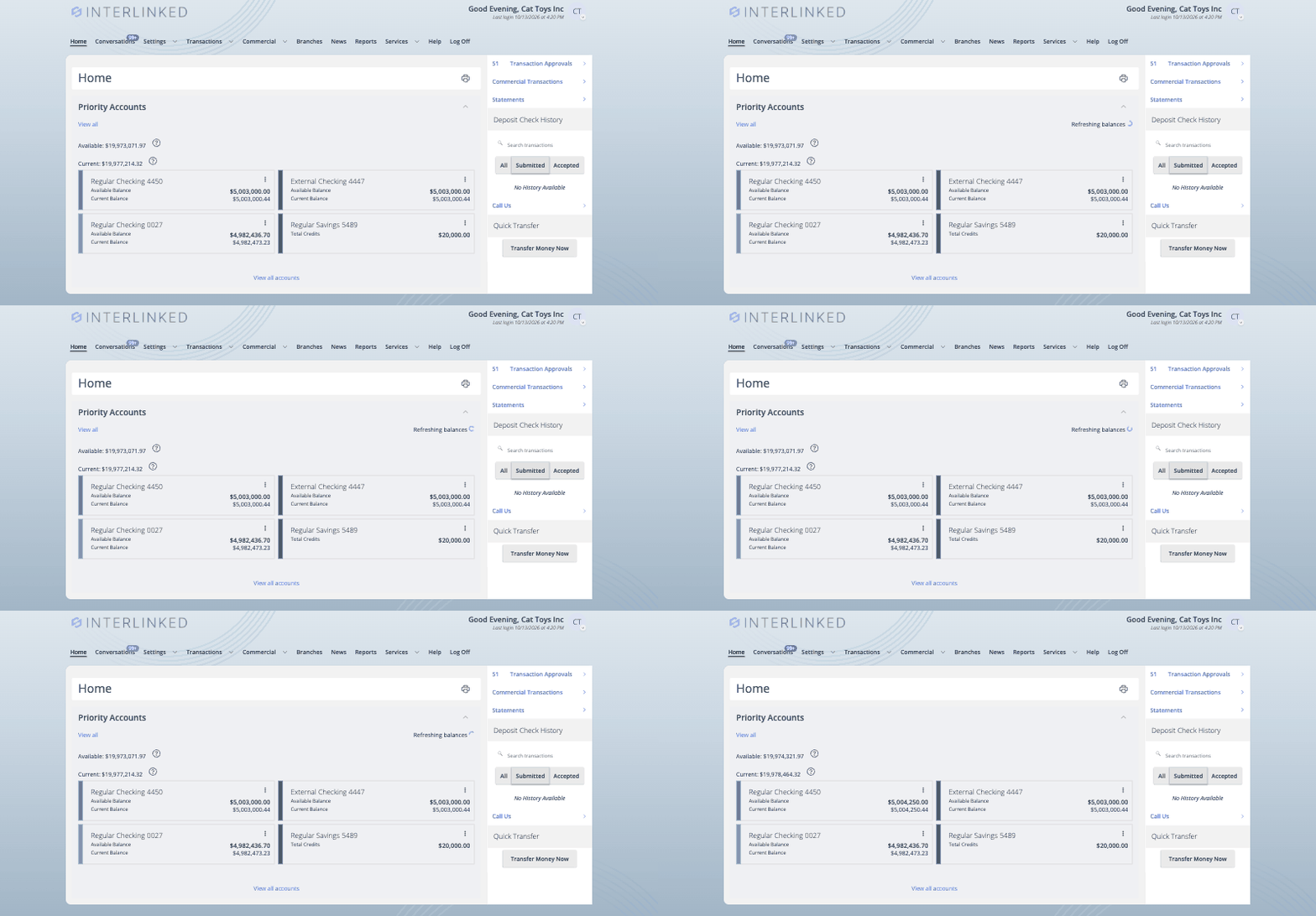
Account events can be used to refresh account information for users currently in session. Refreshes can be targeted using values such as transaction IDs, host account IDs, internal account numbers, external account numbers, and other supported identifiers. This ensures a user’s account view reflects the latest account state without requiring a manual refresh.
Transaction Refresh
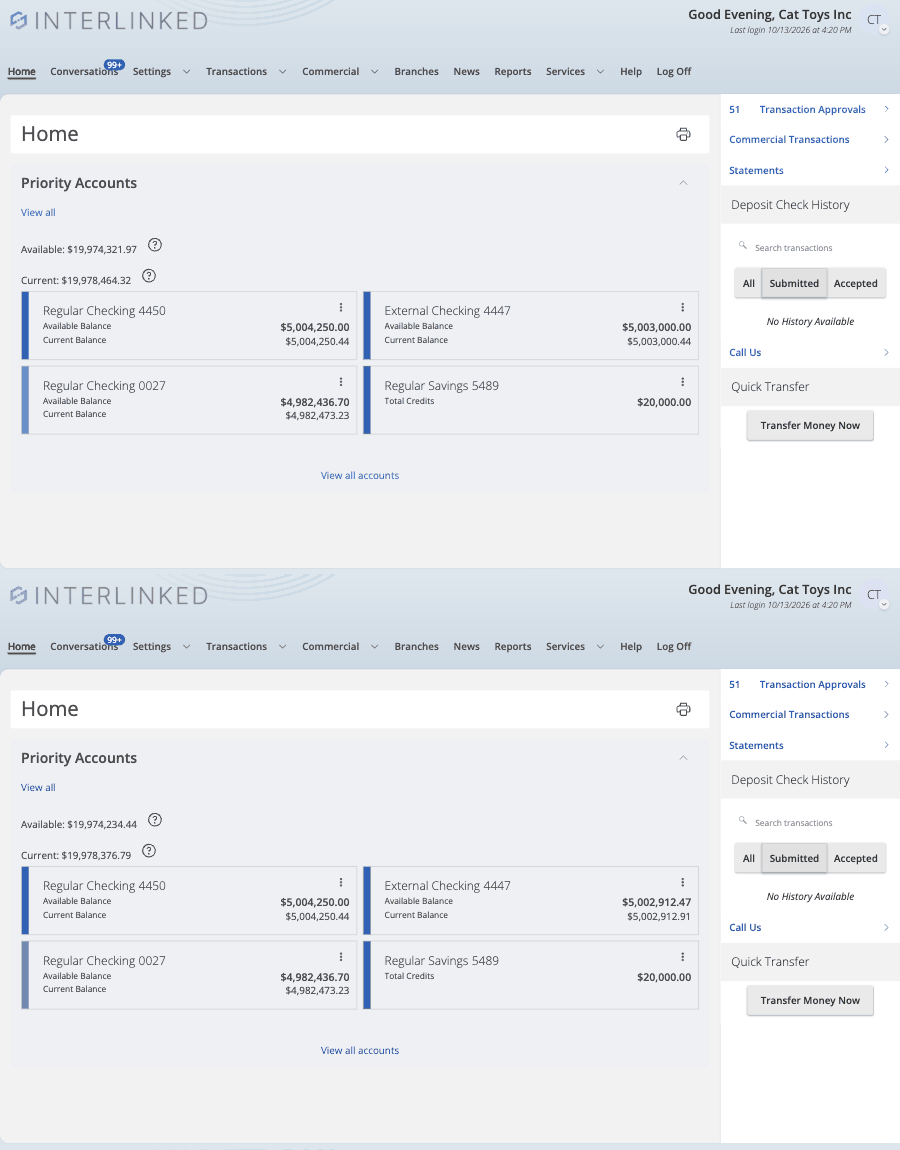
Transaction events can be used to refresh transaction data for users currently in session. This ensures newly available transaction information is displayed immediately without requiring users to sign out and back in.
Alerts
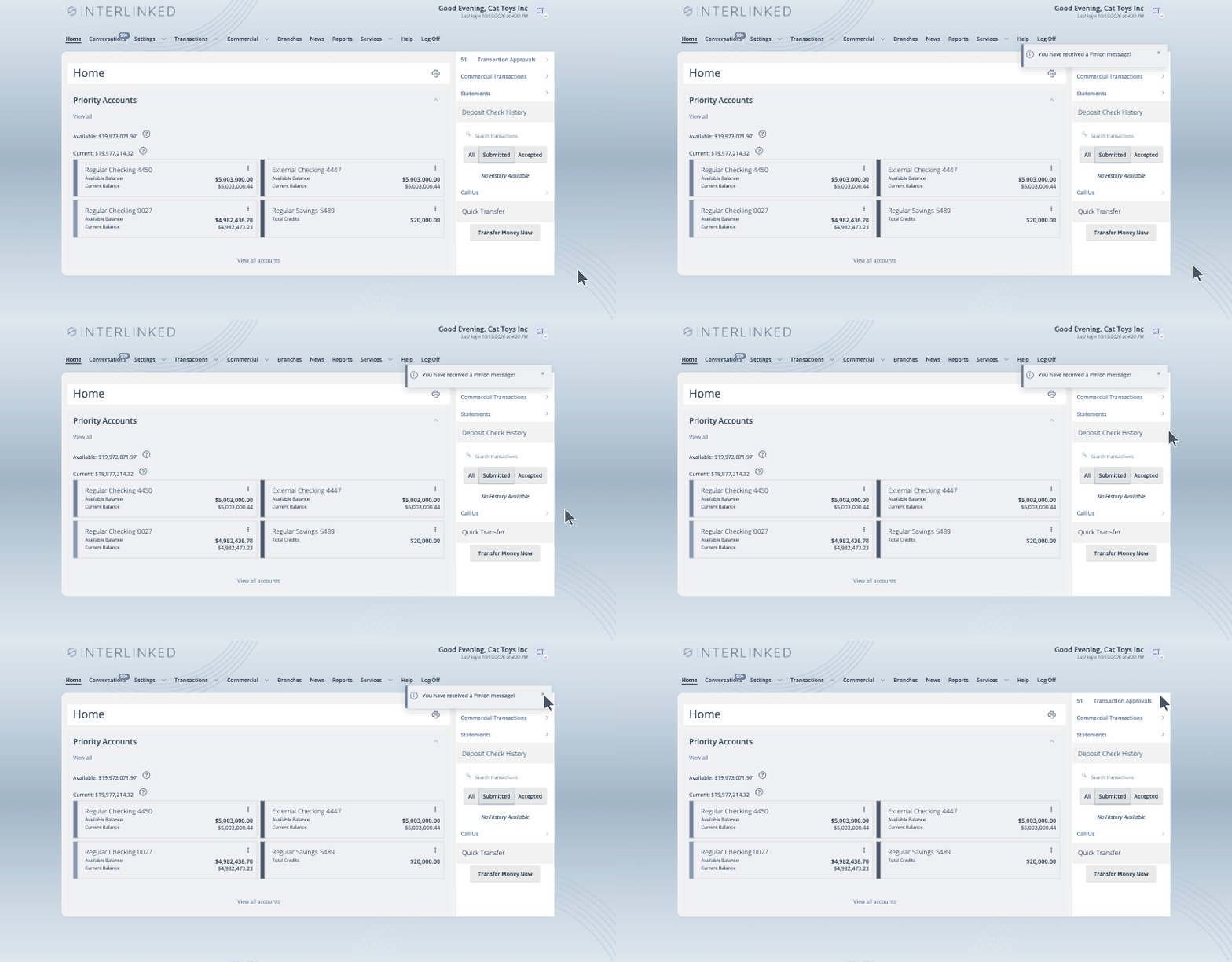
Alerts can be delivered through any supported event type, including
AccountEvent,TransactionEvent,BroadcastEvent, andUserEvent. When the event action is set toNotify, a visible notification is displayed within UUX. Common alert options include:
The alert type:
info,success,warning,errorWhether the user can dismiss the alert (
closableparameter)Duration of the alert before it auto-closes
Walkthrough: Sending a Pinion Notification
In this tutorial, we’ll build a minimal Online extension that allows you to send a Pinion notification. You can adapt this example to your appropriate extension type.
You’ll learn how to:
Create the extension
Add a simple UI
Construct and send an Alert
Adapt the same flow for Account Refresh
Important
Pinion is not supported in SDK sandbox environments as all parts of the Pinion architecture are not deployed to these stacks. You must promote your extension to staging to test end-to-end.
Step 1: Create the extension
To start, run the following command in your terminal:
$ q2 create_extensionWhen prompted, enter a name such as
SendPinionMessage. Names must be unique across your organization if multiple developers are going through this tutorial.
Step 2: Pick the Extension type
For the prompt, select Online (default):
  What type of extension are you creating?

      1) Online (default) <--------
      2) SSO (Third Party Integration)
      3) Ardent (API)
      4) Q2Console (Backoffice)
      5) Central (Legacy Backoffice)
      6) Adapter
      7) Audit Action
      8) Custom Health Check
      9) Message Bus
      10) Caliper API Custom Endpoint
      11) Base Extension

  Please make a selection and press Return [1]: 1
Choose
Server Side Rendered (Default)andAuthenticated (Default)on subsequent prompts.
Step 3: Build the UI
Create a minimal form with a text input and an alert type selector.
 <div class="q2-row">
     <q2-input
         class="q2-col"
         name="message"
         id="input_1"
         label="Alert Message"
         oninput="validateInputEvent(event)"
     ></q2-input>

     <q2-select
       class="q2-col"
       name="alert_type"
       id="alert_type"
       label="Alert Type"
       hoist
     >
       <q2-option value="INFO">INFO</q2-option>
       <q2-option value="WARNING">WARNING</q2-option>
       <q2-option value="ERROR">ERROR</q2-option>
       <q2-option value="SUCCESS">SUCCESS</q2-option>
     </q2-select>
 </div>
 <div class="q2-row">
     <q2-btn intent="workflow-primary" id="my_submit" onclick="submitAlert">Submit</q2-btn>
 </div>
 <script src="{{ this.base_assets_url }}/index.js"></script>
This form posts to your extension with routing_key="submit".
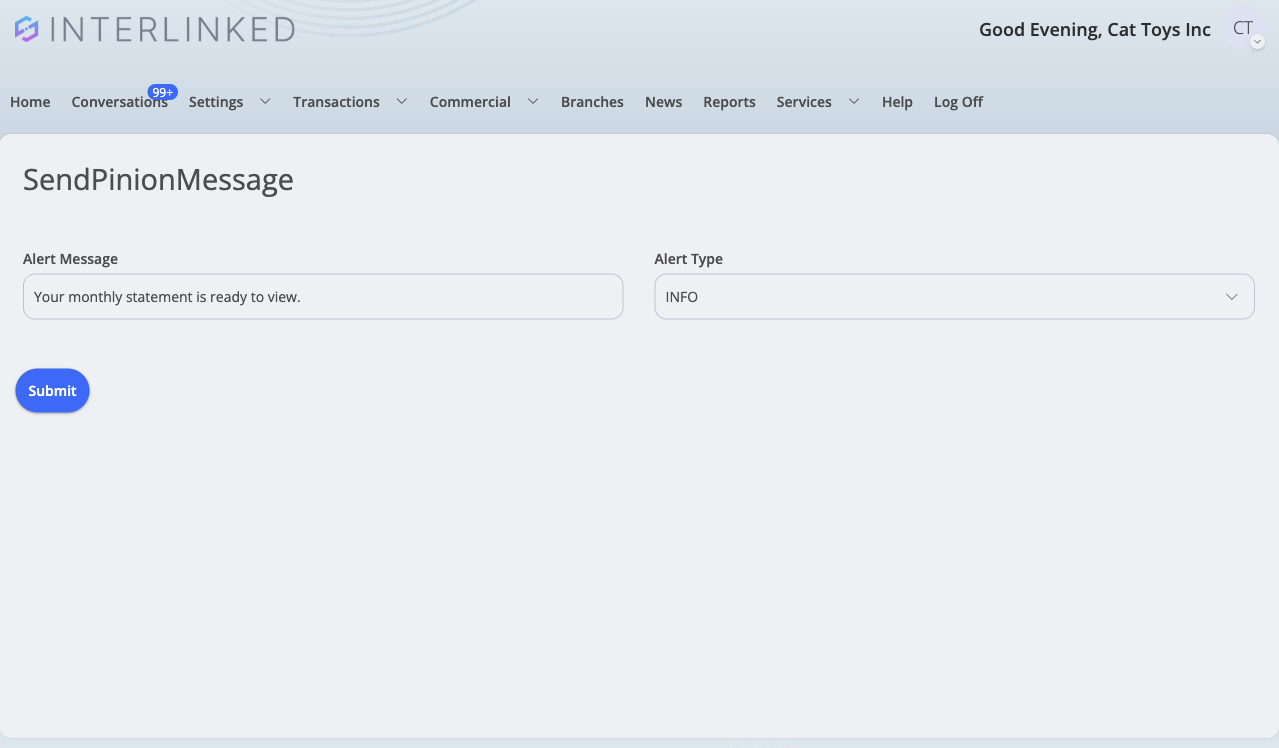
Resulting UI:
Step 4: Send An External Event Through Pinion
On submission, construct an external event alert and send it.
Import Required Libraries
To begin, you’ll need to import the relevant libraries for the operation:
from q2_externalevents.external_event import ExternalEvent
from q2externalevents.event_pb2 import ExternalEvent as ExternalEventPb2
from q2externalevents.event_pb2 import (
    IN_SESSION,
    AccountEvent,
    AccountNumber,
    EventAction,
)
from q2_sdk.ui import modals
Create the Alert template
def create_alert_template(self, message: str, alert_type: AlertType):
     self.logger.info("Alert operation detected...")
     return ExternalEventPb2(
         destination=IN_SESSION,
         user=UserEvent(event_action=EventAction.NOTIFY,primary_cif=self.online_user.primary_cif, alert_type=alert_type), # alert type to be supported soon
         message="Notify user by CIF"
     )
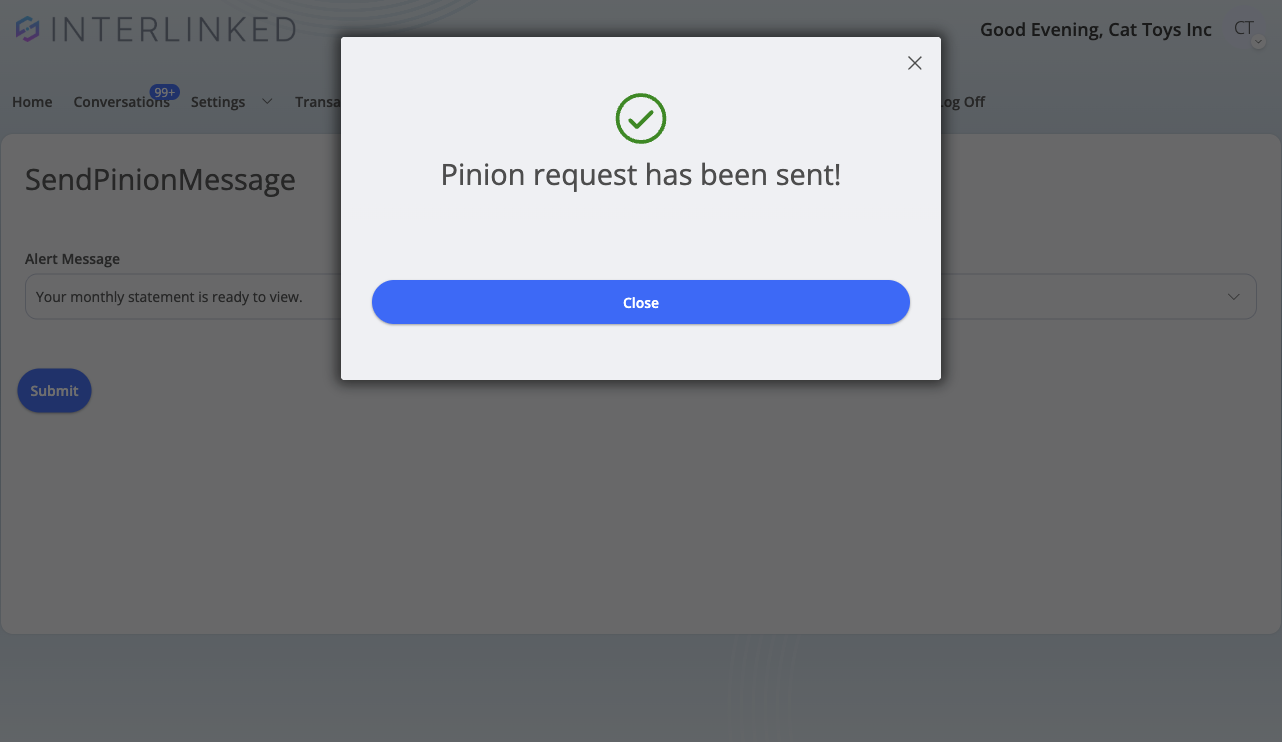
On submit, display a modal with additional details on whether the operation succeeded
 async def submit(self):
     # Read fields
     message = self.form_fields["message"]
     alert_type = AlertType(self.form_fields["alert_type"].lower())

     # Build alert routed by CIF
     template = self.create_alert_template(message, alert_type)

     external_event = ExternalEvent(logger=self.logger, hq_credentials=self.hq_credentials, cache_obj=self.cache)
     result = await external_event.send(template)

     # Feedback via modal
     if not result.success:
         modal = modals.TectonModal(
             modals.ModalType.ERROR, "Failed to send Pinion message",
             show_close=False,
             modal_actions=[modals.ModalAction('Close', internal_route='default')]
         )
     else:
         modal = modals.TectonModal(
             modals.ModalType.SUCCESS, "Pinion request has been sent!",
             show_close=False,
             modal_actions=[modals.ModalAction('Close', external_route='landingPage')]
         )

     return self.get_tecton_form("SendPinionMessage", modal=modal)
This will result in the following pop-up on success:
Step 5: Attempt a Account Refresh
Trigger an account refresh instead of an alert, specify the account event parameter:
 def create_account_refresh_template(self, host_account_id, message):
     self.logger.info("Account refresh operation detected...")
     return ExternalEventPb2(
         destination=IN_SESSION,
         account=AccountEvent(event_action=EventAction.RELOAD_ACCOUNT_DETAILS, required_access=["ACCOUNT_ACCESS_PERMISSION_VIEW"], account=AccountNumber(host_account_id)),
         message="Test message from external events!"
     )
Replace the template variable in your submit with this template as needed. Adjust the user interface as well, similar to the example we went over with the Alert
user interface.
Step 6: Attempt Transaction Refresh
Trigger a transaction refresh using the transaction event parameter:
 def create_transaction_refresh_template(self, transaction_id, message):
     self.logger.info("Account refresh operation detected...")
     return ExternalEventPb2(
         destination=IN_SESSION,
         account=AccountEvent(event_action=EventAction.RELOAD_TRANSACTIONS, transaction_id=transaction_id),
         message="Test message from external events!"
     )
Replace the template variable in your submit with this template as needed. Adjust the user interface as well, similar to the example we went over with the Alert user interface.
Testing
Promote to staging. - Pinion delivery requires staging (or higher).
Log in as a test user in UUX.
Open the “Send Pinion Message” extension.
Submit an alert (e.g., message: “Hello from Pinion!”, type
INFO).You should see a pop-up notification in session.
The alert will auto-close after a few seconds (configurable)
5. Attempt an account refresh - provide a transaction id, account number external or internal, Primary CIF or other detail from the protobuf to confirm automatic refresh of the accounts view. 5. Attempt a transaction refresh - provide transaction IDs to confirm automatic refresh of the transactions view.
Next Steps
Now that you have successfully sent a Pinion message:
Reuse these templates across the extension type you are building
For external systems, use the Caliper API Pinion Endpoint to send notifications directly.
Listening for Pinion Events in Extensions
All Pinion messages sent to the UUX platform are re-broadcast to extensions as platform events. Extensions can respond to platform events using Tecton’s platformEventNotification capability. When sending a Pinion message, you can include a custom event value. This event name will be prefixed with PINION_ and used to broadcast the message to extensions. For example, when sending a Pinion message with an event value of CUSTOM_EVENT, the event name broadcast to extensions will be PINION_CUSTOM_EVENT. If you send a payload and message value with the Pinion message, that data will be included in the event broadcast.
tecton.sources.platformEventNotification('PINION_CUSTOM_EVENT', function(data) {
   doTheNeedful(data.payload);
   tecton.actions.showAlert({
      message: `Pinion Event Received: ${data.message}`,
      styleType: 'info',
      durationInMs: 3000
   });
});